-
Open the Barcode tool
Choose Barcode in FunKollector's add-item tools and allow camera access if prompted. Find the striped barcode and its printed digits on the box.
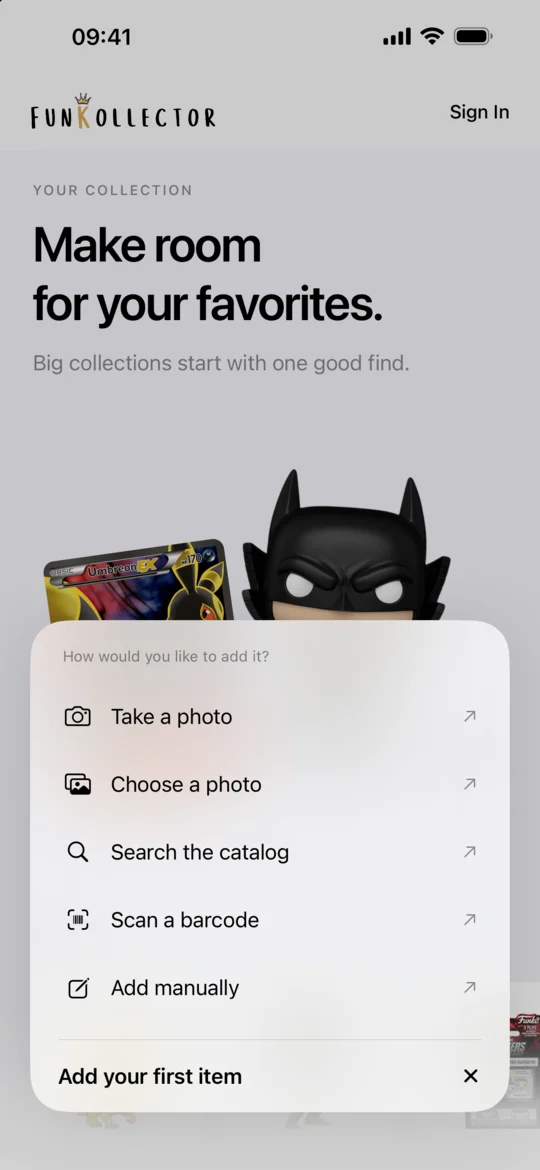
FunKollector add-item menu with the Scan a barcode option -
Frame the whole barcode
Hold the phone steady with the full barcode in view. Tilt a glossy box away from direct light to reduce glare. Give the camera a moment to focus, then wait for the catalog results.
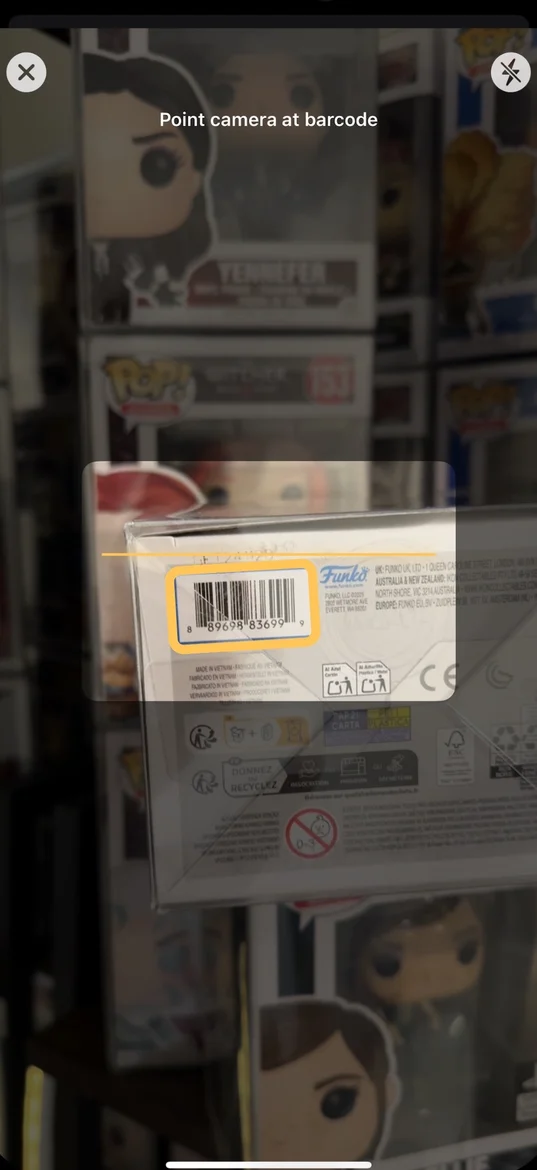
Barcode scanner with the code on a Funko Pop box in view -
Review and save the match
Compare the box number, character, and edition details with the result. Select the entry that matches your figure and tap Add. If two results look similar, check the product details before you choose.
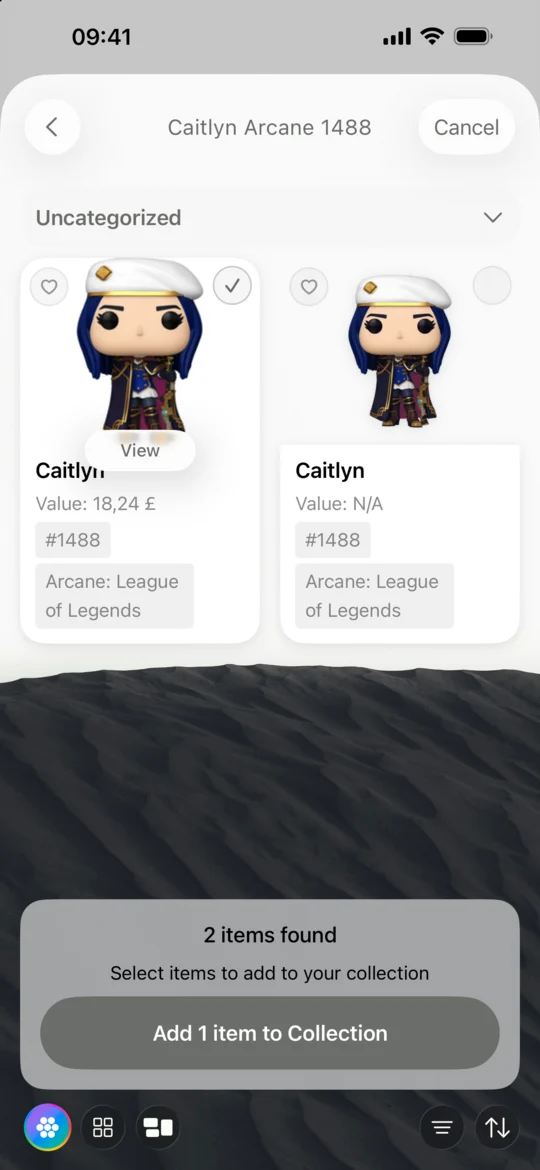
Funko Pop result selected and ready to add to the collection -
Try another lookup if the code has no match
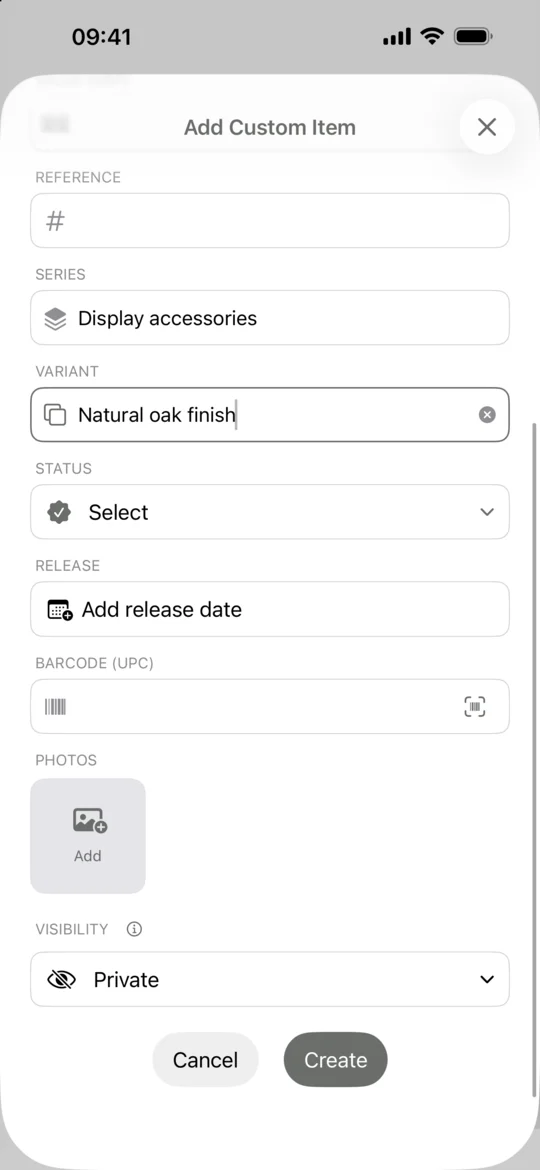
Use Search with the character name and box number, or try a clear photo that shows the figure and its packaging. If the catalog still has no matching entry, use Custom to record your own figure.
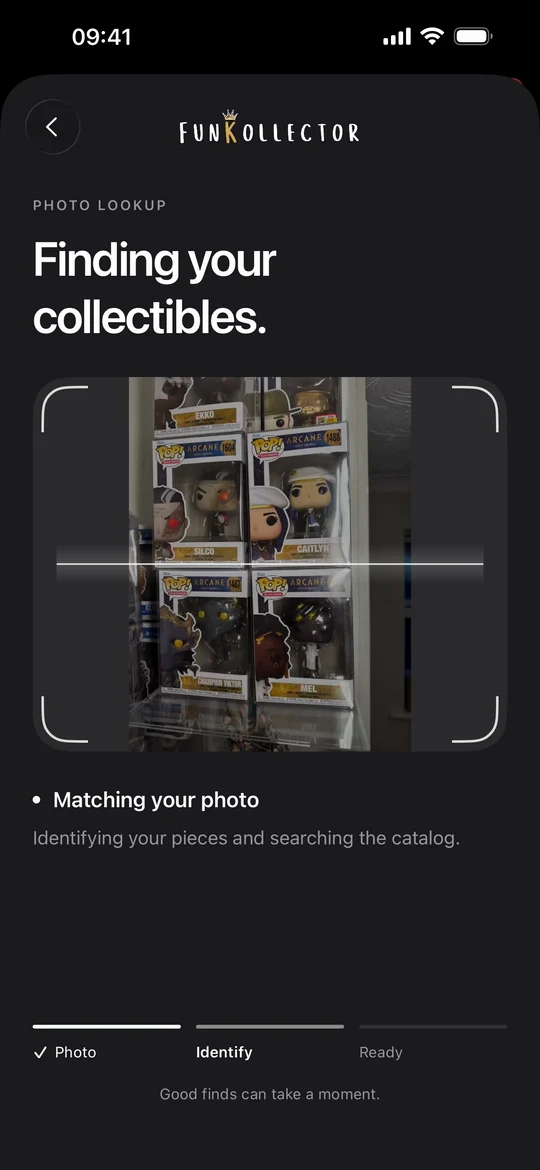
Photo lookup identifying boxed Funko Pops in a shelf photo
Common questions
Can I look up a Funko Pop without the box?
Yes. Search by character or series and compare the result photos and edition details. Add your own entry if there is no suitable catalog match.
Does scanning the barcode tell me how much my Pop is worth?
The scanner finds a catalog entry. An estimated value may appear when data is available. Condition, packaging, and the exact variant can affect what your copy sells for.
Related guides
- How to track your Funko Pop collection Build a Funko Pop inventory in FunKollector, find the right variants, organize your figures into shelves, and keep a wishlist of Pops you want.
- How to add custom collectibles Add an uncatalogued collectible to FunKollector with your own name, category, details, and photos. Choose who can see the entry before you save.
- How to track your LEGO collection Use FunKollector to record your LEGO sets, verify set numbers, create shelves by theme or display, and add unlisted builds as custom items.
- How to track your trading card collection Catalog trading cards in FunKollector, check the set and collector number, and use shelves to organize cards by game, deck, or binder.