-
Start with the card name and set
Open Search and choose Trading Cards as the type. Enter the name printed on the card and, when known, add the set as the series. You can also try photo lookup with the full card in view and minimal glare.
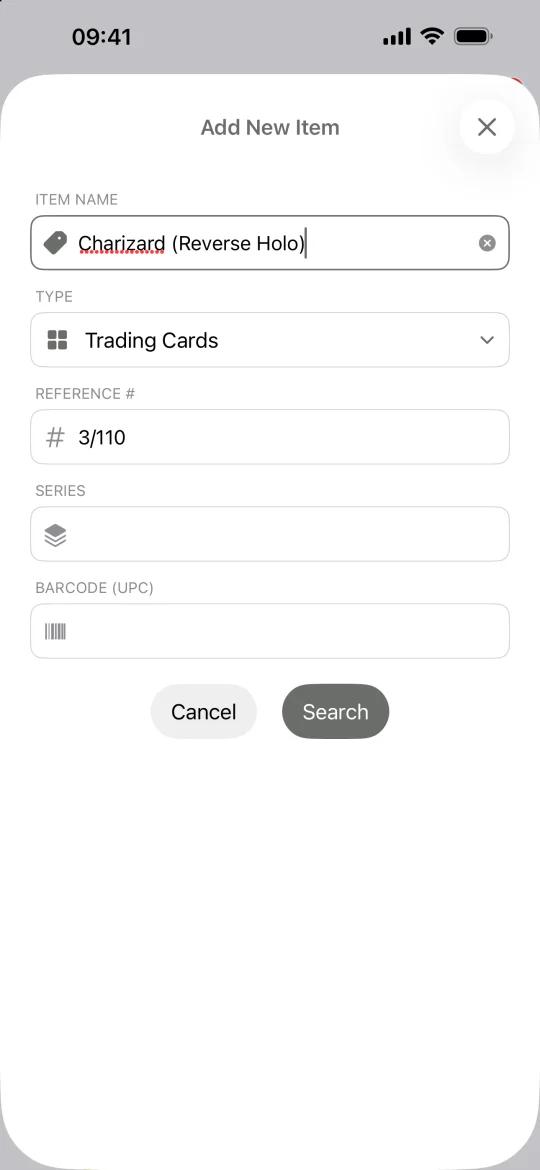
Trading Cards search form filled in for Charizard (Reverse Holo) #3/110 -
Compare the exact printing
Check the collector number, set, artwork, and finish before you choose a result. A foil or alternate-art printing can look close to the regular version. Select the match and tap Add.
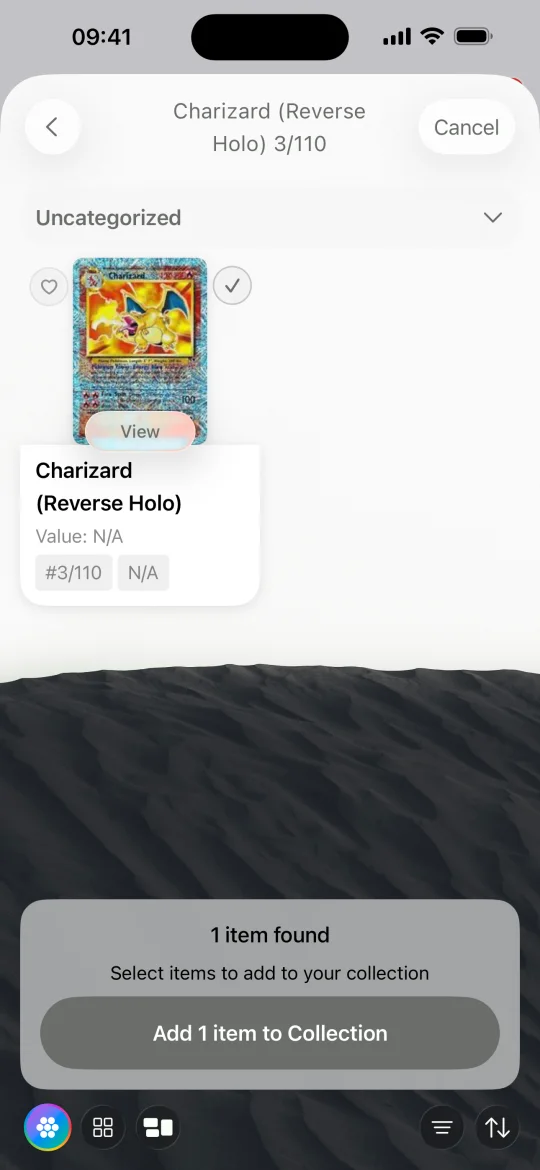
Charizard (Reverse Holo) #3/110 selected in the search results with its card artwork visible -
Use shelves to organize games and binders
Open My Collection and filter by Trading Cards. Use shelves for a game, deck, binder, or set you are completing. Return to Favorites when planning which cards to look for next.
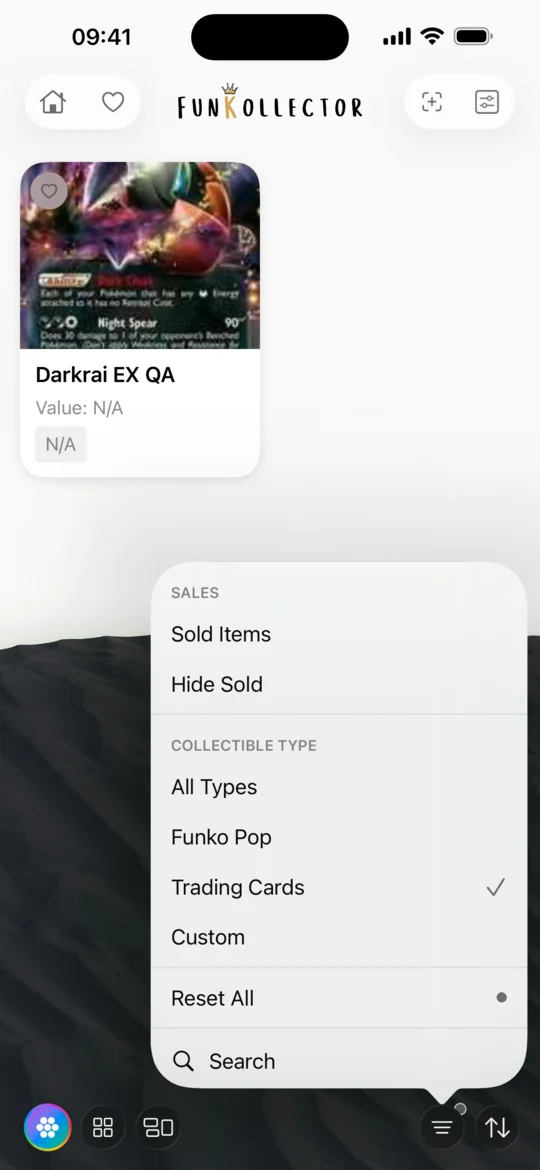
Gallery filter menu with Trading Cards selected -
Keep a record of cards you cannot find
Use Custom if a printing or promo is missing. Add the card's name, set, collector number, and your own photo so you can identify it later.
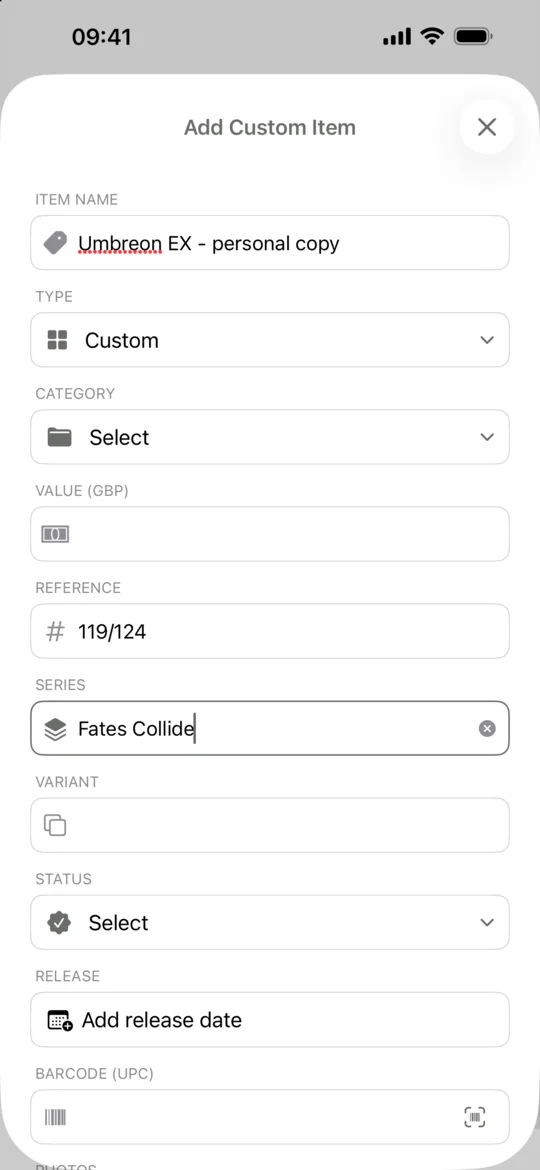
Custom item form with Umbreon EX, its collector number and Fates Collide
Common questions
Can I use a booster pack barcode to find an individual card?
The barcode on a pack identifies the sealed product. For an individual card, search by its printed name and set or use a clear photo of the card.
Can I track several trading card games in one collection?
Yes. Add the catalog entries you can identify, create custom entries for missing cards, and use separate shelves to browse each game.
Related guides
- How to track your Funko Pop collection Build a Funko Pop inventory in FunKollector, find the right variants, organize your figures into shelves, and keep a wishlist of Pops you want.
- How to scan a Funko Pop barcode Scan the barcode on a Funko Pop box, check the result against your figure, and use catalog search or a custom entry when a scan cannot find it.
- How to add custom collectibles Add an uncatalogued collectible to FunKollector with your own name, category, details, and photos. Choose who can see the entry before you save.
- How to track your LEGO collection Use FunKollector to record your LEGO sets, verify set numbers, create shelves by theme or display, and add unlisted builds as custom items.