-
Search the catalog first
Choose Search or Search the catalog from the add-item menu. Choose the collectible type and enter its name. Add the series or reference number if you know it. If you find the right match, select it and add it to your collection. If there’s no matching result, create a custom record manually in the next step.
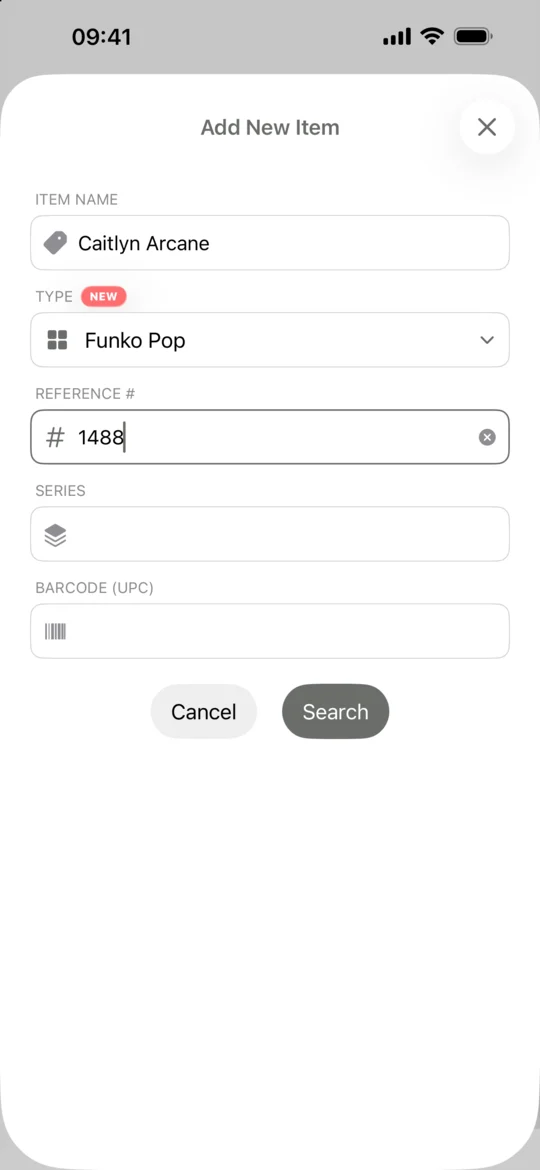
Catalog search form with Funko Pop selected -
Create a custom record manually
Return to the add-item menu and choose Custom or Add manually. Give the item a name you can search for later, then select or create a category.
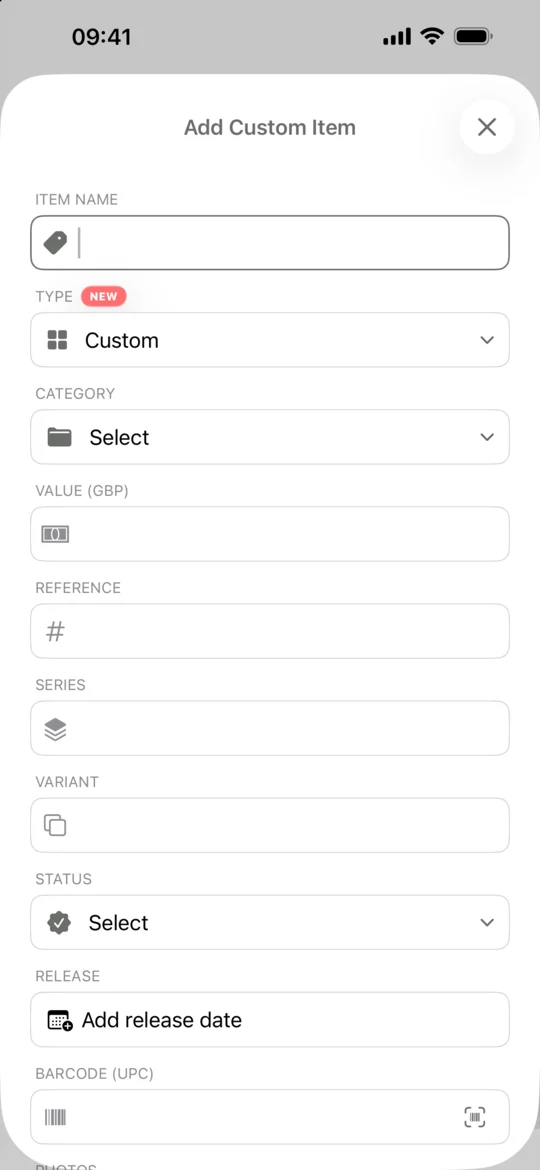
Custom item form with name and category fields -
Record details that identify your copy
Fill in the fields you have, such as series, reference, variant, or barcode. You can enter a value if you have one to record. Use your own photos to capture distinguishing details such as a sticker or the condition of the packaging.
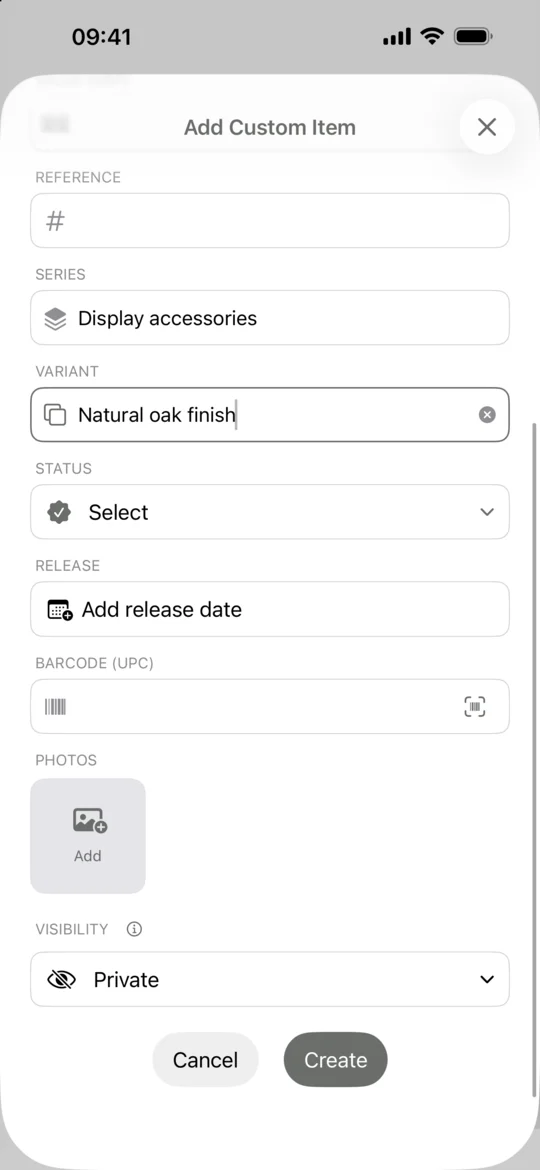
Custom item editor showing the collectible details -
Review visibility and add the item
Choose Private to keep the entry for yourself. Look at the visibility explanation in the app before choosing Public. Tap Create and sign in if prompted. Open the saved item in My Collection to add it to a shelf.
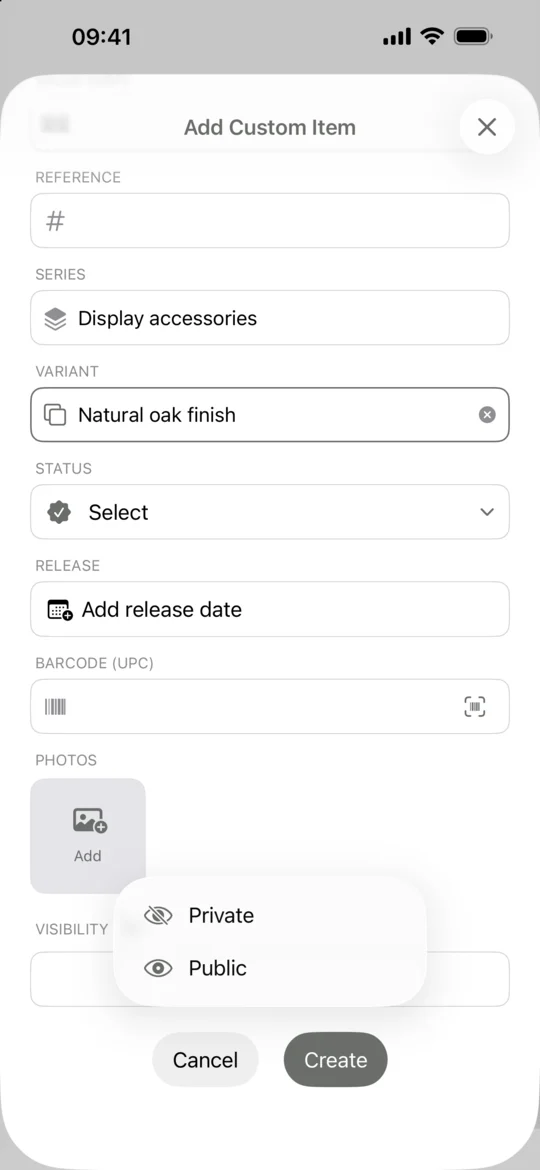
Private and Public options above the Create button on iPhone
Common questions
Do I need a barcode to add a custom collectible?
No. You can create a custom item without a barcode. A clear name, a category, and a photo give you enough information to recognize it later.
Can I use my own photo on an item already in the catalog?
Yes. Open the saved item and add custom photos from its details. Use a custom entry when you want your own item record or there is no suitable catalog match.
Related guides
- How to track your Funko Pop collection Build a Funko Pop inventory in FunKollector, find the right variants, organize your figures into shelves, and keep a wishlist of Pops you want.
- How to scan a Funko Pop barcode Scan the barcode on a Funko Pop box, check the result against your figure, and use catalog search or a custom entry when a scan cannot find it.
- How to track your LEGO collection Use FunKollector to record your LEGO sets, verify set numbers, create shelves by theme or display, and add unlisted builds as custom items.
- How to track your trading card collection Catalog trading cards in FunKollector, check the set and collector number, and use shelves to organize cards by game, deck, or binder.